How to set a custom text tone on iPhone
You change the message sound the same way as the ringtone, and it accepts a custom sound too. The secret of a good text tone: keep it short.
Go to Settings › Sounds & Haptics › Text Tone. Your custom sounds are in the Ringtones section. To make one, create a very short ringtone (1 to 3 seconds) with Phone Ringtones.
Change your text tone
- Open Settings › Sounds & Haptics.
- Tap Text Tone.
- Pick a sound under Alert Tones (Apple's short sounds) or under Ringtones, where your own sounds are.
Make a custom text tone
iOS doesn't tell a ringtone and a custom alert tone apart: a sound you add as a ringtone also shows up in the text tone list. It just has to be short, or every message sets off a long piece of music.
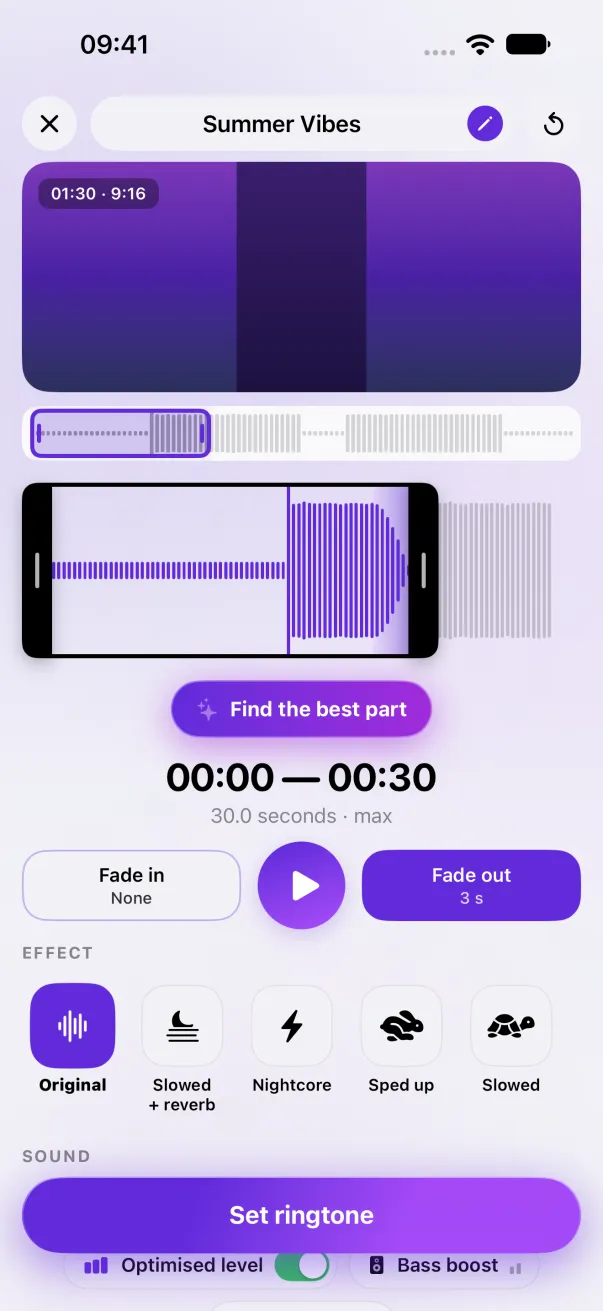
- In Phone Ringtones, pick your sound and trim the selection to 1 to 3 seconds: a “ding” from a song, a word, a noise.
- Remove the fades, or make them as short as possible: on 2 seconds, a fade eats the whole sound.
- Tap Set ringtone, then Use as Ringtone.
- Put your usual call ringtone back in Settings › Sounds & Haptics › Ringtone, then pick the new sound in Text Tone.
A different tone for one person
In Contacts, open the card, tap Edit, then Text Tone: their messages get their own sound, just like a contact ringtone. See A different ringtone for one contact.
Other notifications
The sounds for New Voicemail, New Mail, Calendar Alerts and Reminder Alerts are changed on the same page, from the same list. Apps like WhatsApp or Instagram pick their own sounds, though: a custom sound doesn't apply to them.
The easy way: Phone Ringtones
Pick a video, pick your part, install it. Free, on iPhone.