How to change your iPhone ringtone (iOS 26 and iOS 27)
You change your ringtone in Settings, in two taps. What's less obvious: how to add a ringtone that isn't in the list, and how to have a different one for different people.
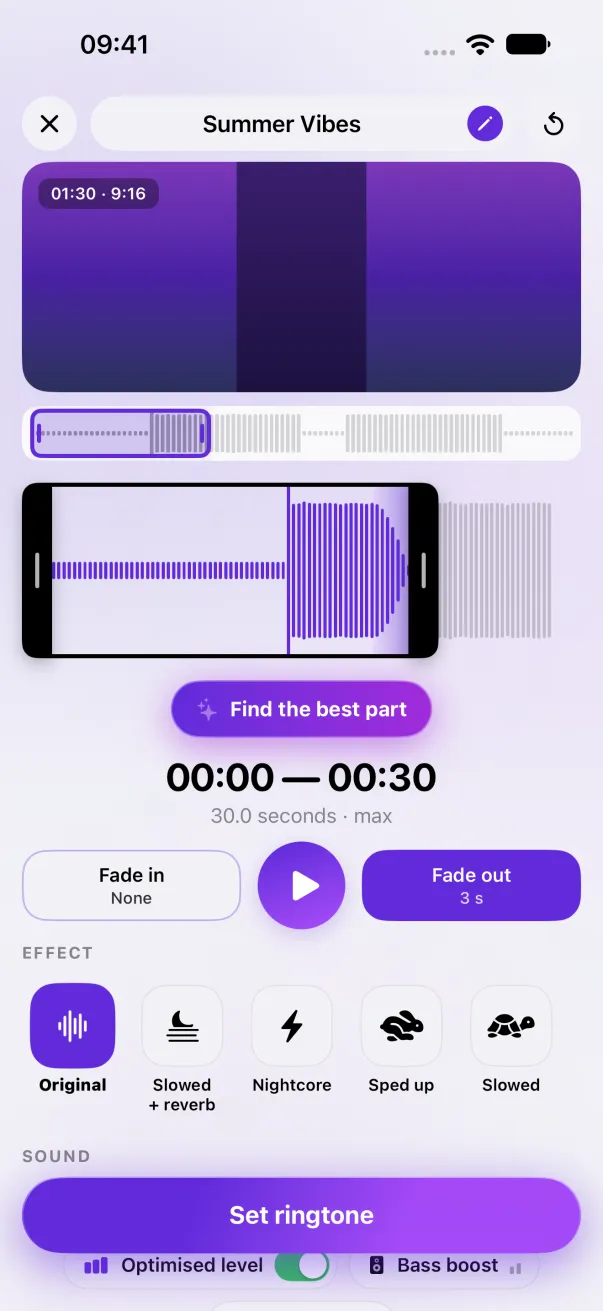
Go to Settings › Sounds & Haptics › Ringtone and tap the one you want. Your custom ringtones are at the top of the list. To add one, make it with Phone Ringtones and choose Use as Ringtone.
Change the ringtone
- Open Settings, then Sounds & Haptics.
- Tap Ringtone.
- Tap a ringtone to hear it: it becomes your ringtone right away. Your own ringtones are at the top, above Apple's.
On the same page, Text Tone changes the sound for messages, and Vibration, at the top of each list, picks the vibration that goes with it.
Add a ringtone to the list
The list only has Apple's ringtones, the ones bought on the iTunes Store and the ones you added. To add a song, the sound of a video or your own voice:
- In Phone Ringtones, pick your sound (Video, Audio or Sounds) and your part.
- Tap Set ringtone, then Use as Ringtone (iOS 26 and later).
- iOS opens Settings › Sounds: it's added and already selected.
On older versions of iOS, adding one goes through GarageBand: see A custom ringtone without GarageBand.
A ringtone for each person
A ringtone picked in a contact's card replaces your main ringtone, for that person only: you know who's calling without taking out your phone. See A different ringtone for one contact.
Volume and vibration
The Ringer and Alerts slider, in Sounds & Haptics, sets the ringtone volume. If your ringtone sounds quiet or turns itself down, see Ringtone too quiet. And if your iPhone doesn't ring at all: iPhone not ringing.
The easy way: Phone Ringtones
Pick a video, pick your part, install it. Free, on iPhone.