Custom alarm sound on iPhone: use a song or any sound
Your iPhone alarm can go off with a song, or with any sound you've added as a ringtone. You choose it alarm by alarm, in the Clock app.
In Clock › Alarms, tap the alarm, then Sound. Choose Pick a song for a song from your Music library, or one of your ringtones, at the top of the Ringtones list.
Change an alarm's sound
- Open the Clock app, Alarms tab.
- Tap the alarm you want to change (or + to create one).
- Tap Sound.
- Choose a sound: a song from your library, one of your ringtones, or one of Apple's sounds. Then go back and tap Save.
Each alarm has its own sound: your weekday alarm can be gentle, your weekend one can play music.
A song from Apple Music
At the top of the list, Pick a song opens your Music library. You can choose an Apple Music song you've added to your library, or a song you bought. The alarm plays the song from the beginning. Spotify and Deezer don't show up here: only Apple's Music app is linked to the alarm.
Any sound: go through a ringtone
For a specific part (the chorus, not the intro), the sound of a video, a TikTok sound, or a Spotify song through a video, make a ringtone first: it then shows up in the sound list of every alarm, in the Ringtones section.
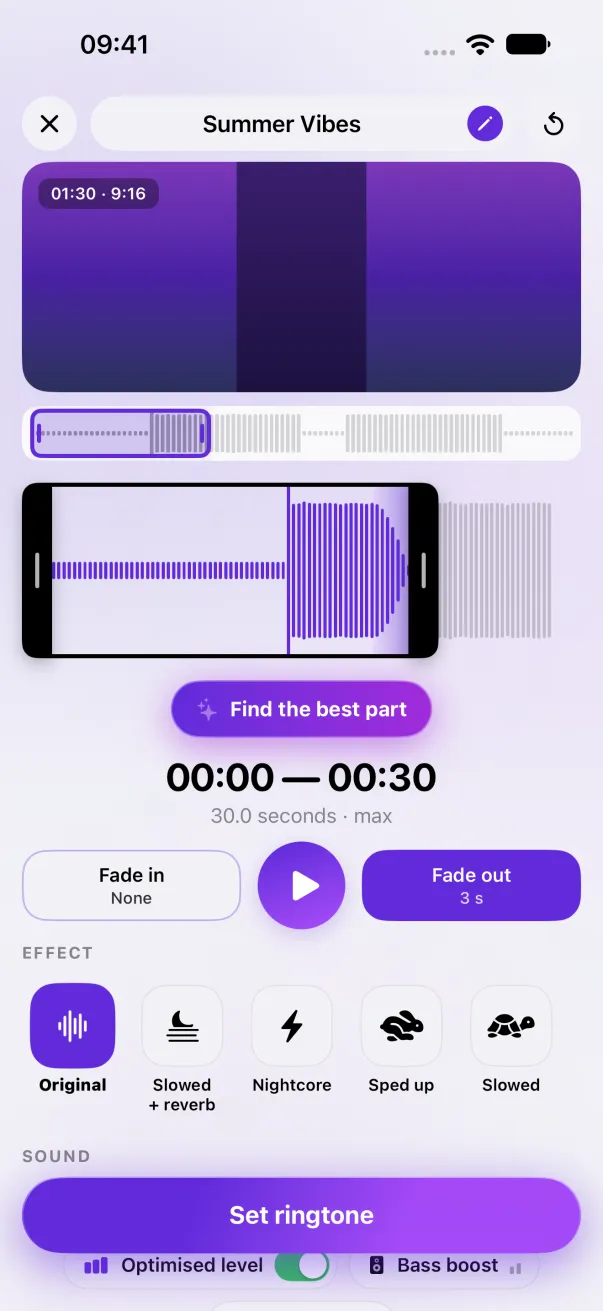
- In Phone Ringtones, pick your sound and place the selection on the moment that should wake you up.
- Tap Set ringtone, then Use as Ringtone. (It also becomes your ringtone for calls: put the old one back in Settings › Sounds & Haptics › Ringtone if you prefer.)
- In Clock, choose it as the alarm sound.
Alarm volume
The alarm rings at the volume set in Settings › Sounds & Haptics › Ringer and Alerts, even in silent mode. For a gentle wake-up, pick a part that starts softly, or add a fade-in in Phone Ringtones (up to 5 seconds).
The easy way: Phone Ringtones
Pick a video, pick your part, install it. Free, on iPhone.