How to delete a custom ringtone from your iPhone
The ringtones you add pile up at the top of the list. You can delete them right on your iPhone, no computer needed. Careful: erasing them in the app that made them doesn't remove them from Settings.
In Settings › Sounds & Haptics › Ringtone, swipe left on one of your ringtones and tap Delete. Apple's ringtones can't be deleted.
From Settings
- Open Settings › Sounds & Haptics › Ringtone.
- At the top of the list, under Ringtones, find the one to remove.
- Swipe it to the left, then tap Delete.
Deleting it in the app isn't enough
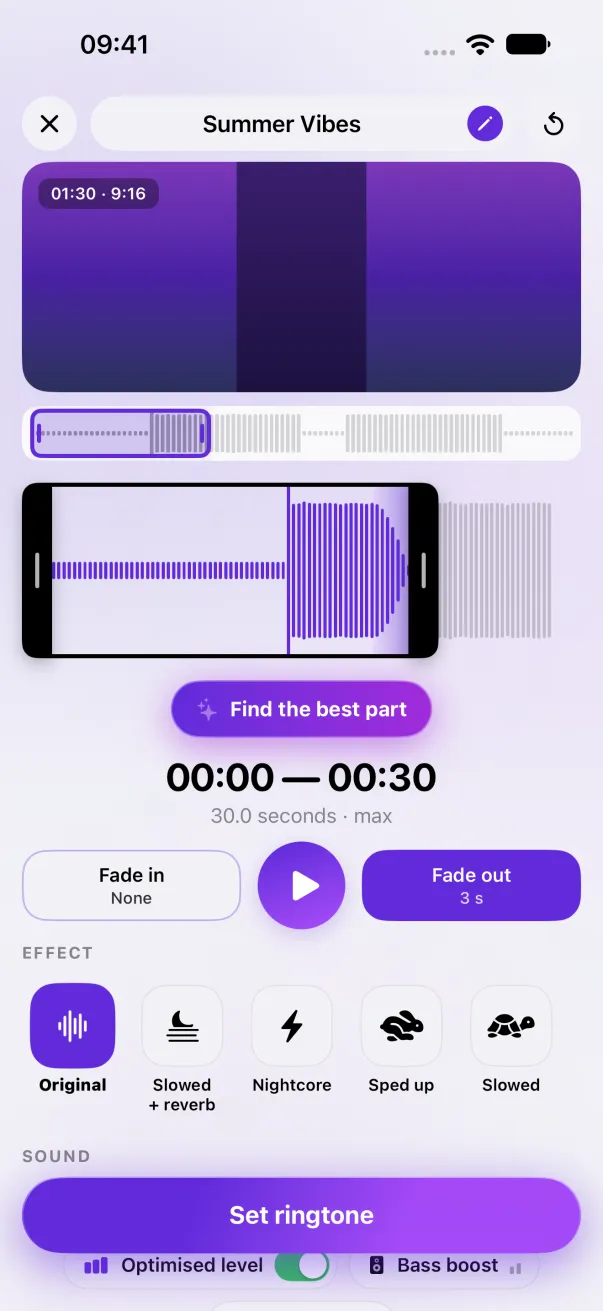
Once a ringtone is installed, iOS keeps its own copy. Deleting the ringtone in Phone Ringtones (or in GarageBand) frees up space in the app, but the ringtone stays in Settings › Sounds & Haptics until you delete it there. The reverse is true too: deleting the ringtone in Settings doesn't erase it from the app, so you can reinstall it later.
From GarageBand
For a ringtone exported with GarageBand: in My Songs, touch and hold a project, then Share › Ringtone. Open the list of your exported ringtones at the top of the window, then tap Edit: each ringtone has a button to delete it.
Replace it instead of deleting it
To swap a ringtone for a fixed version (best part, fade, volume), open it in My ringtones in Phone Ringtones: editing it doesn't count as a new ringtone. Reinstall it, then delete the old version in Settings.
The easy way: Phone Ringtones
Pick a video, pick your part, install it. Free, on iPhone.