How to make a ringtone with GarageBand on iPhone, step by step
GarageBand, Apple's free music app, is the classic way to make a ringtone on iPhone without a computer. It works on every version of iOS, but it takes about ten steps.
In GarageBand: start a new song with the Audio Recorder, import your file from the loops, trim it to 30 seconds, then in My Songs touch and hold the project and tap Share › Ringtone › Export. Since iOS 26, Phone Ringtones does the same thing in one tap.
Before you start
- Install GarageBand from the App Store (free, by Apple).
- Put your music in the Files app: GarageBand can't read your Spotify or Apple Music library. See MP3 to ringtone on iPhone.
- GarageBand's button names change a little from one version to the next: if a name is different, look for the icon described.
The steps in GarageBand
- Open GarageBand, create a new song and choose the Audio Recorder instrument.
- Tap the tracks view button (the icon that looks like bricks, top left), then the loops button (the lasso-shaped loop, top right).
- In the Files tab, tap Browse items from the Files app and pick your music.
- Touch and hold the file and drag it all the way to the left of the track.
- Tap + at the end of the ruler, then Section A, and turn on Automatic: otherwise GarageBand cuts the song after a few bars.
- Shorten the region to keep your part, 30 seconds at most, by dragging its edges.
- Tap the arrow at the top left, then My Songs.
- Touch and hold the project, then Share › Ringtone. Give it a name and tap Export.
- At the end, GarageBand offers Use sound as…: choose Standard Ringtone.
Common pitfalls
- Longer than 30 seconds: GarageBand shortens the ringtone itself, but not necessarily where you wanted. Trim it before you export. See The 30-second limit.
- The song stops after 8 bars: that's Section A, which you need to set to Automatic (step 5).
- The Ringtone button doesn't show up: you share from My Songs, not from inside the project.
The shortcut since iOS 26
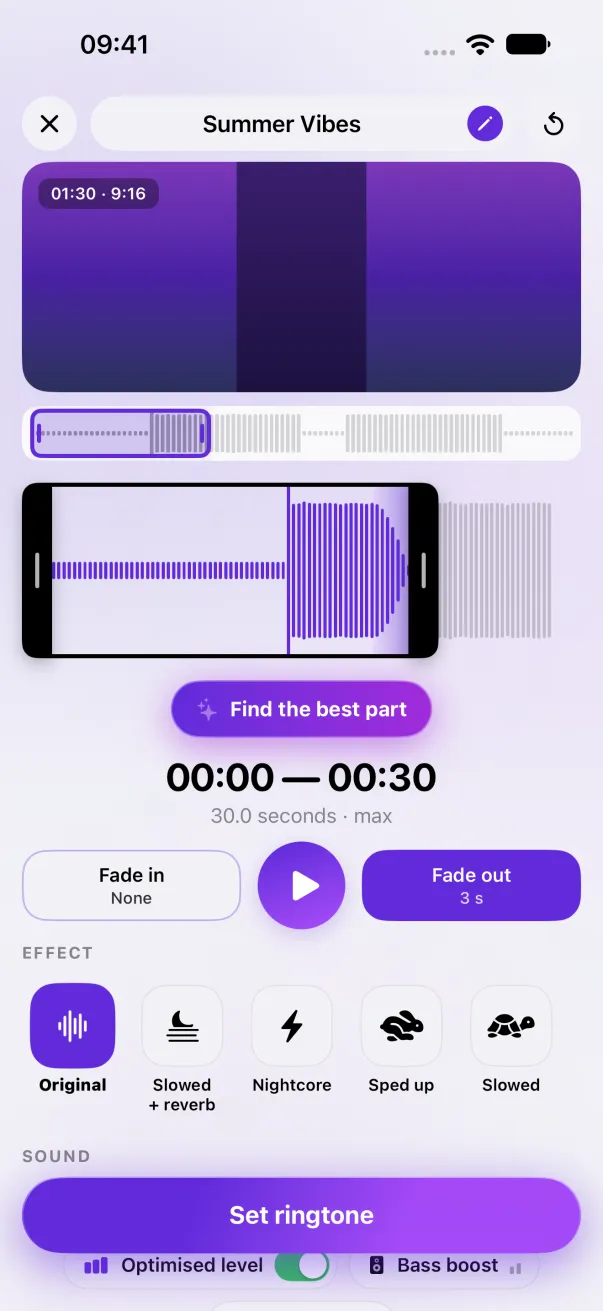
Since iOS 26, iOS can install a ringtone straight from the share sheet: the Use as Ringtone action. Phone Ringtones uses it: pick your music with Audio, choose your part, then tap Set ringtone. Before iOS 26, the app prepares the ringtone and guides you through GarageBand with Open in GarageBand: only the last two steps are left. See A ringtone without GarageBand.
The easy way: Phone Ringtones
Pick a video, pick your part, install it. Free, on iPhone.