Turn a video into an iPhone ringtone
The sound of a video in your camera roll can become your ringtone. You need to extract the sound, keep 30 seconds at most, then install it.
In short
In Phone Ringtones, tap Video, pick it, keep the part you want, then tap Set ringtone and Use as Ringtone. Done.
With Phone Ringtones
- Open Phone Ringtones and tap Video. Pick the video in your camera roll (up to 3 minutes).
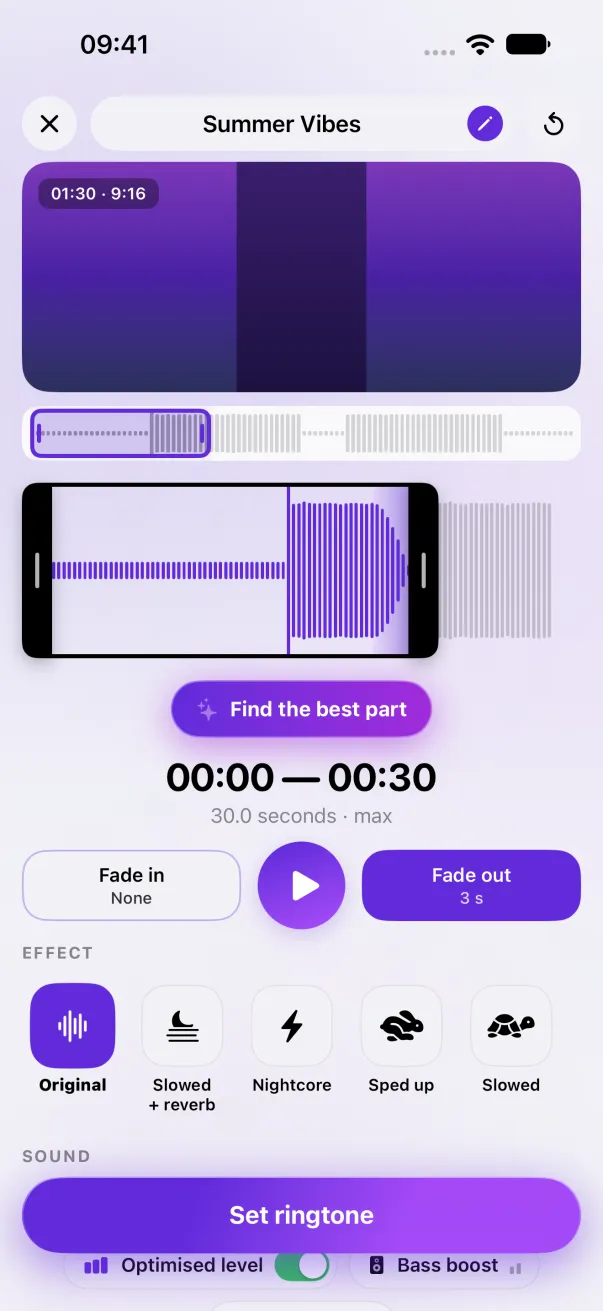
- The app extracts the sound on your iPhone. Slide the selection over the part you want, up to 30 seconds. For your first ringtone, Find the best part picks it for you.
- Tap ▶ to listen. Add a fade at the start or the end if you like.
- Tap Set ringtone. The iOS share sheet opens: choose Use as Ringtone.
- iOS opens Settings › Sounds with your ringtone already selected. Done.
Before iOS 26: with GarageBand
On older versions of iOS, the “Use as Ringtone” action doesn't exist. You have to go through GarageBand, Apple's free app. Phone Ringtones guides you:
- Once the ringtone is made, tap Open in GarageBand. Your ringtone opens as a project.
- In GarageBand, touch and hold the project, then Share › Ringtone › Export.
- Go to Settings › Sounds & Haptics › Ringtone: it's at the top of the list.
Why 30 seconds at most?
iOS refuses any ringtone longer than 30 seconds: 30.0 seconds goes through, 30.1 is refused. Phone Ringtones always cuts at 30 seconds, even with an effect that slows the sound down. See Ringtone refused: the 30-second limit.
The easy way: Phone Ringtones
Pick a video, pick your part, install it. Free, on iPhone.