How to make a song your ringtone on iPhone (without a computer)
A song can become your ringtone right on your iPhone, without a computer or iTunes. It all depends on where the music comes from: a file, a video, a social network or a streaming app.
Get the music as a file (MP3, M4A) or in a video in your camera roll, open it in Phone Ringtones, keep 30 seconds at most, then tap Set ringtone. Songs from Spotify, Deezer or Apple Music can't be used: they're protected.
First: where is your music?
An iPhone ringtone is a short audio file. So you need a sound your iPhone can open outside the app that plays it. It depends:
- An MP3, M4A or WAV file (sent by email or AirDrop, downloaded from a site that sells files): the easiest case. See MP3 to ringtone on iPhone.
- A video in your camera roll (a concert you filmed, a video saved from a social network): the sound of the video is enough. See Turn a video into a ringtone.
- A sound you heard on TikTok: save the video, then start from the video. See A TikTok sound as your ringtone.
- A song on Spotify, Deezer or Apple Music: not possible directly, the files are protected. See Spotify, Deezer, Apple Music: what works.
Make the song your ringtone with Phone Ringtones
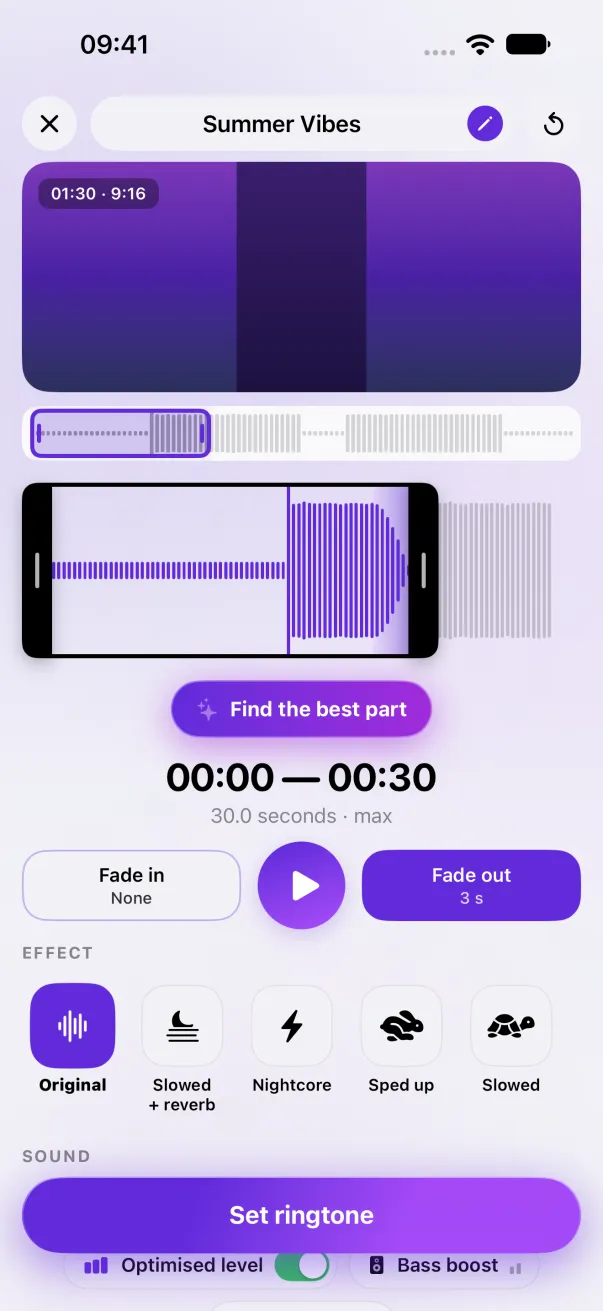
- Open Phone Ringtones and tap Audio for a file, or Video for a video in your camera roll.
- Pick the song (up to 10 minutes for an audio file, 3 minutes for a video). The app extracts the sound on your iPhone. Nothing is sent online.
- Slide the selection over the part you want, often the chorus. It's 30 seconds at most. For your first ringtone, Find the best part spots it for you.
- Tap ▶ to listen. Add a fade at the start or the end if the cut is abrupt.
- Tap Set ringtone, then Use as Ringtone in the iOS share sheet. iOS opens Settings › Sounds with your new ringtone already selected.
Pick the right part
- The chorus, not the intro: a quiet intro goes unnoticed in a pocket or a bag.
- A strong start: the iPhone plays the ringtone from the beginning on every call. If the first seconds are too soft, move the selection.
- A fade at the end: the ringtone loops for as long as the call rings. A 2- to 3-second fade avoids a “click” every time it starts over.
- Sound too quiet? Leave Optimised level on: it brings the sound up to the right level. See also Ringtone too quiet.
What about without an app?
Before iOS 26, Apple's only way on iPhone was GarageBand: import the song, trim it, export it as a ringtone. It still works, but it takes longer. See How to make a ringtone with GarageBand. Since iOS 26, the Use as Ringtone action replaces that detour: see A ringtone without GarageBand.
The easy way: Phone Ringtones
Pick a video, pick your part, install it. Free, on iPhone.