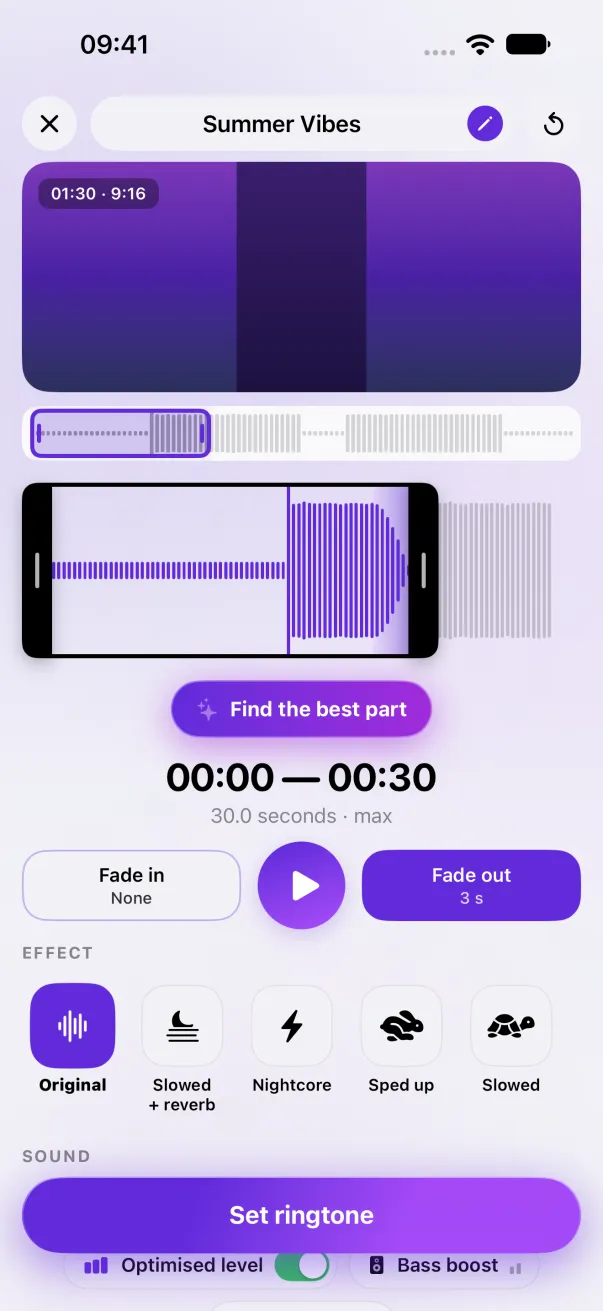
MP3 to ringtone on iPhone, from the Files app
The iPhone won't take an MP3 as a ringtone as is: it needs an AAC file of 30 seconds or less. You don't have to convert it yourself. The MP3 just has to be in the Files app.
Save the MP3 to the Files app, then in Phone Ringtones tap Audio, pick it, keep your part and tap Set ringtone. The app converts it to the right format by itself.
1. Put the file in the Files app
The Files app is the only place where another app can get your MP3. Depending on where it comes from:
- An email or message attachment: tap the file, then the share button and Save to Files.
- From a Mac: send it with AirDrop, it lands in the Downloads folder in Files. Or drag it into iCloud Drive.
- Downloaded in Safari: it's already in Files › Downloads.
- On a USB drive or a disk: plug it in, it shows up in Files under Locations.
2. Make it a ringtone
- Open Phone Ringtones and tap Audio. Files opens inside the app: pick your MP3.
- The app decodes the sound on your iPhone (files up to 10 minutes long). Slide the selection over the part you want, 30 seconds at most.
- Listen with ▶, and add a fade if needed.
- Tap Set ringtone, then Use as Ringtone. iOS opens Settings › Sounds with your ringtone selected.
Which files work?
The common audio formats work: MP3, M4A, AAC, WAV, AIFF. The original quality doesn't matter much: a ringtone always comes out as AAC, the format iOS expects. Old low-quality MP3s (22 kHz, voice recordings) work too.
A song downloaded in Spotify, Deezer or Apple Music for offline listening, on the other hand, isn't in Files: it's encrypted and only plays in their app. See Spotify, Deezer, Apple Music: what works.
Why not just rename the MP3 to .m4r?
You'll see this tip everywhere: renaming rarely works, because an MP3 isn't AAC inside. And the file also has to be 30 seconds or less. The details are in The iPhone ringtone format.
The easy way: Phone Ringtones
Pick a video, pick your part, install it. Free, on iPhone.